Firefox for Android Built-in VPN: Free 50GB Monthly Browsing, Setup and Limits
Firefox for Android offers 50GB of free VPN browsing monthly for eligible users with a Mozilla account. Covers installation, sign-in, activation, locations and
Sources checked on 7 November 2026 (Asia/Shanghai). This guide combines official Mozilla documentation with interface examples. It does not claim that Carddoger personally tested account activation, speeds or access to particular services.
The short answer: free, but not a whole-phone VPN
Firefox's built-in VPN offers 50GB of free VPN browsing each month. It routes browsing through a proxy network so websites see an exit IP rather than your original IP. It primarily protects web browsing inside Firefox, not every app on the phone, and it is not a mobile carrier data plan.
Do not treat it as a free residential IP, dedicated static IP, anti-fingerprint browser or a guarantee of passing account risk checks. Signing in, cookies and other identifiers do not disappear when your IP changes. Mozilla VPN is a separate paid, device-wide service; its locations, availability, pricing and installation instructions cannot be substituted for the browser feature.
This guide focuses on Android: first confirm eligibility and the entry point, then sign in, enable the feature, choose a location and understand quota or connection issues.
1. Requirements and what is not guaranteed
| Item | Verified position | | --- | --- | | Price | Firefox currently provides 50GB of free VPN browsing per month; this guide does not require buying a paid subscription | | Platforms | Mozilla documents a desktop launch in March 2026 and Android rollout from July. Do not apply Android instructions directly to iPhone | | Version and regions | Android 157 release notes say availability expanded to more than 200 regions. This does not guarantee the feature appears immediately on every installation | | Account | A Mozilla account is required; follow the browser's sign-in and verification instructions | | Coverage | Firefox web browsing, not automatically other apps, system traffic or downloads | | Exit locations | Use the current location list in your own browser. Eligible regions and selectable exit countries are different counts | | Mainland China | The current detailed official eligibility list could not be verified from accessible documentation in this review. Direct connectivity, stable service and universal availability there are not promised |
The official Android help page returned a loading challenge during this review, so a complete current eligibility list and fixed exit-country count are not presented as verified facts. Earlier documentation listing only a few countries should not override the later Android 157 expansion. Conversely, “more than 200 regions” does not mean unconditional availability everywhere. Check current official help, your actual location and the browser's own eligibility messages.
2. Install standard Firefox, not a similarly named app
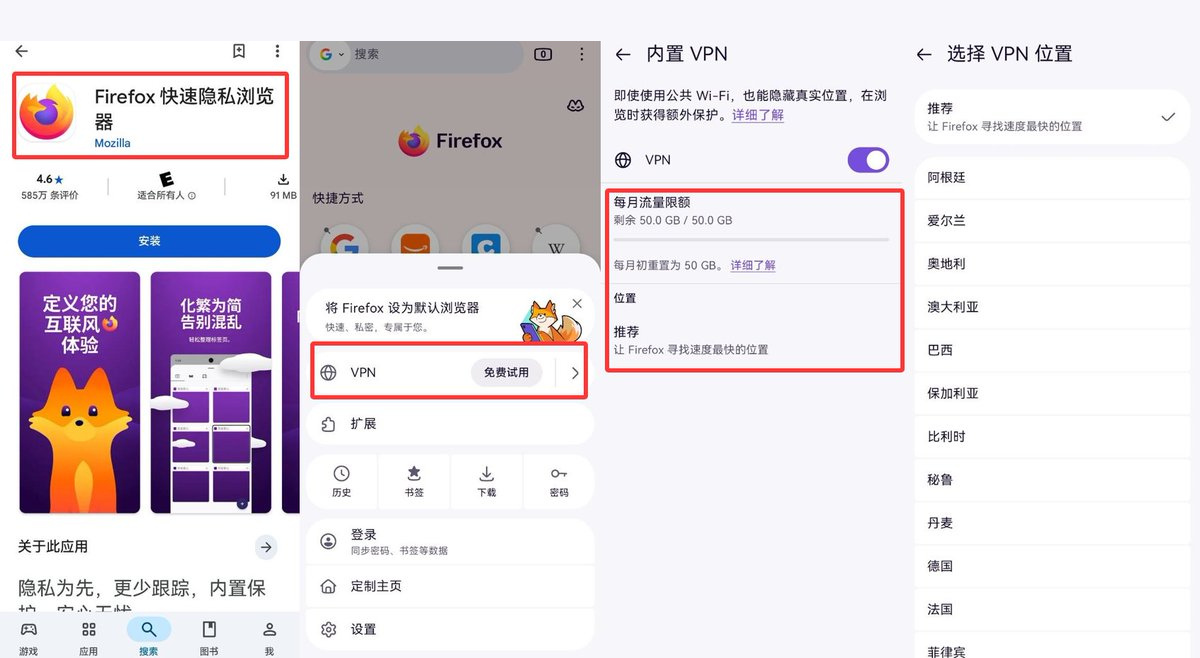
Follow the Firefox Android website to Google Play and verify the developer is Mozilla. The standard Android package is org.mozilla.firefox. Store titles may include descriptive phrases such as “fast private browser.”
“Private browser” does not mean you need a special separate edition. Do not substitute Firefox Focus, a third-party app with a similar name or a VPN extension. Update to an officially supported version, but do not assume updating alone forces eligibility.
This guide does not provide region spoofing, hidden preference changes or proxy stacking to force activation. If the entry point is missing, use ordinary official troubleshooting.
3. Setup: menu → VPN → sign in → enable → location
Step 1: Open the Firefox menu
Open Firefox after installation and expand its menu. Eligible devices may show a VPN entry with an introductory label such as “try for free.”
That wording should not automatically be interpreted as a paid trial requiring a bank card. Confirm that the next page is the Firefox built-in feature, not the separate Mozilla VPN subscription. If your actual screen presents a charge or subscription terms, stop and read them instead of paying simply to match an illustration.
Step 2: Use your Mozilla account
If prompted, sign in or create a Mozilla account and complete necessary verification, such as email verification. Return to the VPN page afterward. Do not use someone else's account or publish account details and verification codes.
Step 3: Enable built-in VPN
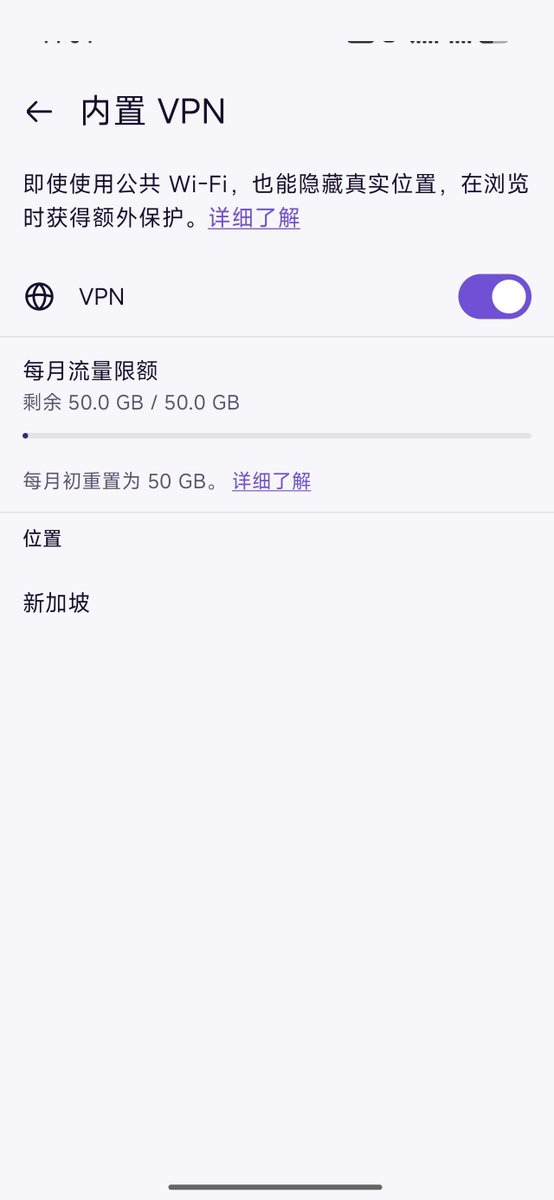
Read the explanation and turn on the VPN switch. Confirm the feature's own connected state. A VPN icon in the Android status bar alone does not prove this service is connected; another app may produce that icon.
Step 4: Check location and allowance
Tap Location and select an exit from the list currently offered, or leave the recommended option. After changing location, verify the connection remains active. Availability can change with version, eligibility, promotions and service updates; an old screenshot is not a permanent list.
The quota area shows remaining data and the current allowance; the example displays 50.0GB / 50.0GB. Official material confirms a monthly allowance. Follow the current interface for reset timing rather than treating the screenshot's calendar-month wording as an exact worldwide rule for every account and time zone. Do not assume each device independently receives another 50GB.
The complete four-panel image below covers installation, menu entry, enabling and location selection. Labels and available locations can change.
4. Confirm the connection, not just the switch
Return to the built-in VPN page and inspect its connection, location and allowance. If needed, check that a webpage loads inside Firefox and whether that webpage sees a changed exit IP. Results in a different app are not evidence that Firefox's browser traffic is protected.
The following screen illustrates the enabled switch, remaining allowance and selected location. It does not show that every user can always select that location, nor is it a Carddoger speed test.
Datacenter is not residential; “clean IP” scores are not guarantees
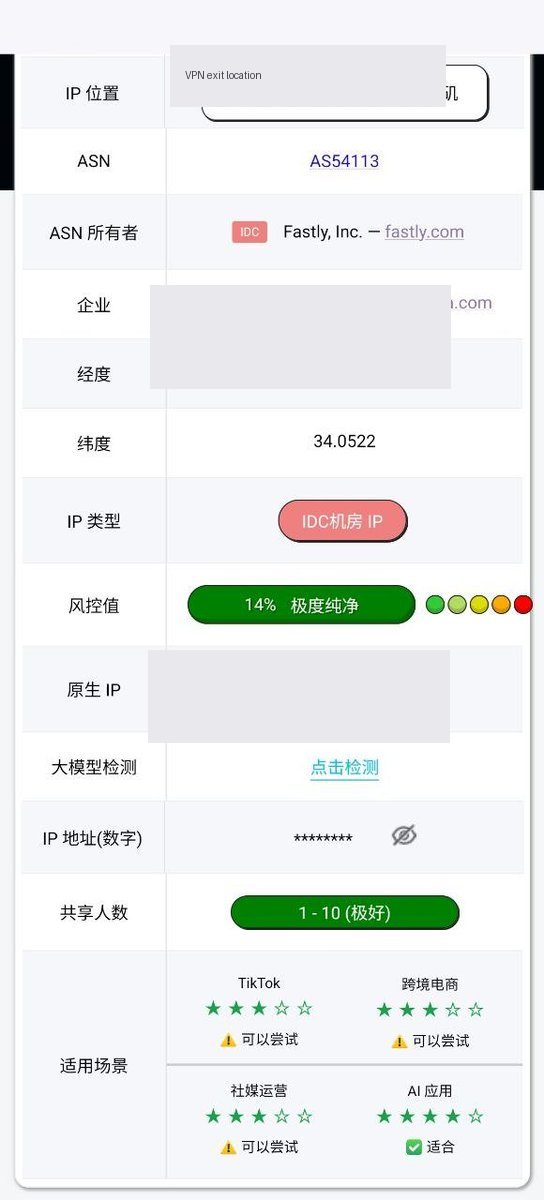
A third-party IP lookup can label an exit as Fastly, a datacenter IP, or assign a risk score and suggested uses. Those are one tool's observations at one moment, not Mozilla promises of stability, exclusivity or platform acceptance. Geolocation databases can also disagree.
The example below preserves the network-type and rating information, with the exit-location label, coordinates and numerical-IP field masked. It cannot guarantee that a bank, exchange, AI service or streaming platform will permit login, registration or payment. Services can identify shared proxies, request verification or prohibit proxy access; follow their rules.
5. Missing entry, “Get started” screen or connection failure
No VPN entry in the menu
Check in this order:
- Confirm standard Firefox, Mozilla as developer and an officially supported current version.
- Check whether your real location is supported and the feature has reached your account/device.
- Follow sign-in prompts, review official help or service notices, then normally restart the browser to check again.
- If still absent, contact Mozilla support or wait for normal availability. Do not force it with hidden preferences or a fabricated region.
Android 157's “more than 200 regions” is a release statement, not a service promise to every account. Equally, an old five-country list should not be treated as the definitive scope of a newer release.
“Get started” does not mean connected
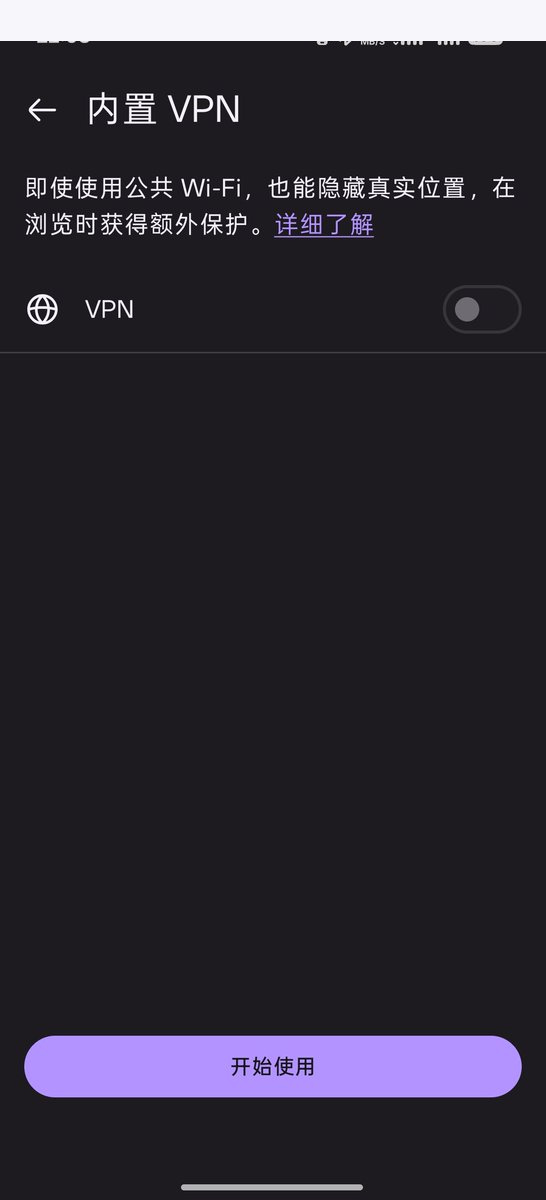
An onboarding page may initially show only a “Get started” button. Follow normal onboarding, read the terms and sign in until the feature actually indicates a connection. A gray switch is not proof that browser traffic is protected.
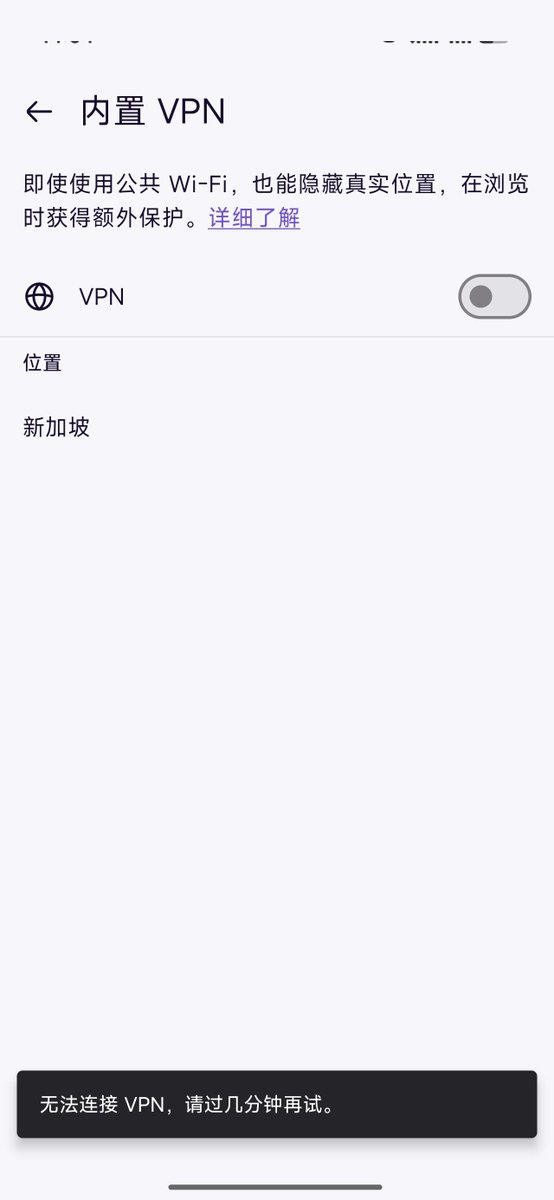
“Unable to connect to VPN; try again in a few minutes”
Check ordinary internet connectivity to the official service, wait as instructed and consult official support information. If the location or network cannot use the service, stop rather than treating another proxy layered underneath as an official prerequisite or reliable fix. This example alone cannot identify whether region, account, device or network caused the failure.
What happens after 50GB?
Mozilla says IP protection pauses at the monthly limit until the next cycle. Firefox asks for confirmation before continuing without VPN protection. Do not dismiss that prompt without understanding it, and do not assume browsing after disabling the feature is still proxied.
6. Five distinctions that matter
- Browser allowance is not a mobile data plan. Normal internet charges still apply; the feature does not replace Wi-Fi or cellular service.
- A browser proxy is not device-wide VPN coverage. Messaging, email, games and other browsers do not automatically inherit protection. Do not assume downloads are covered either.
- A different exit IP is not anonymity. Accounts, cookies and other identifiers can still identify you; this is not a complete anonymous or anti-fingerprint environment.
- A selectable location does not guarantee access. Destination services retain their own regional, proxy and compliance rules.
- Free today is not a perpetual promise. Mozilla currently provides 50GB per month for free; allowance, locations and terms can change.
Carddoger summary
If the feature is available in your supported environment, Firefox's built-in VPN can add IP privacy to browser traffic with a useful free 50GB monthly allowance. Verify standard Firefox, sign in with a Mozilla account, confirm the connection and choose from the current location list. It is not a guarantee of direct service in mainland China, not a whole-phone VPN and not a free residential IP. For missing entry points or failures, follow official troubleshooting rather than bypassing eligibility restrictions.
Official references
- Firefox Android official download page
- Google Play: standard Mozilla Firefox
- Mozilla: free built-in VPN and monthly 50GB allowance
- Mozilla: browser-only coverage, excluding other apps, downloads and system traffic
- Firefox Android 157 release notes: availability in more than 200 regions
- Official help for Firefox Android built-in VPN
The final help page's article body could not be retrieved in this review, so it is not used to claim that the complete current eligible-region or exit-location list was verified. Current official guidance and the app control eligibility, locations, allowance and terms.